
You can cast VR porn from a Meta Quest 3 to a TV using the headset’s built-in Cast, a Chromecast, a supported smart TV, or a PC over Quest Link. The cast strips the stereoscopic 180-degree feed down to a single-eye 2D view at 720p or 1080p, so it suits shared viewing rather than full personal playback.
The simple workflow is: choose a casting method, confirm the right target device, start playback in your VR player, then start the cast from the Quest’s universal menu. Most users will pick the built-in Cast to a Chromecast for casual shared viewing or a wired PC mirror for the cleanest signal. Both routes flatten the stereo view, both compress the resolution, and both demand careful privacy handling because adult content is easy to surface accidentally on the wrong screen.
If you are not sure whether casting is worth the setup, read our streaming vs download comparison before adding another playback layer. It explains when local files behave better than browser streams, which matters because the cast takes whatever the headset is already rendering.
VRPorn.com is the easiest single account when you want a wide catalog to scroll through with a partner during shared viewing.
Quick Answer: How to Cast VR Porn from Quest 3 to TV
Use a simple casting workflow: pick a method that matches your TV, sanity-check the target device, start the VR app first, then start the cast from the Quest’s universal menu. Casting always flattens stereo to one eye at lower resolution, so treat it as shared-viewing playback, not a quality upgrade.
| Step | What to do | Why it matters |
|---|---|---|
| 1 | Pick a method (Chromecast, smart TV, PC mirror) | Each has different setup and quality tradeoffs |
| 2 | Confirm the cast target | Adult content on the wrong screen is hard to undo |
| 3 | Open your VR player first | The cast picks up the active app |
| 4 | Start playback in the headset | Casting an idle home screen wastes time |
| 5 | Open the universal menu | Cast button lives in the system tray |
| 6 | Pick the right device from the list | Quest remembers paired devices |
| 7 | Confirm the cast started on the TV | Quest sometimes silently fails to mirror |
| 8 | Stop the cast cleanly when done | Stops accidental resume next session |
The Quest 3’s built-in Cast feature is the path most users will land on. It works with Chromecast devices, Google TV, NVIDIA Shield, and many recent smart TVs. The Meta Quest mobile app can also receive a cast on a phone, which is sometimes useful for confirming what the headset is showing without a TV in the room.
For a cleaner signal at higher quality, the PC route through Quest Link or Air Link plus a mirror window is the better path. The PC handles the rendering, you stream the headset view in a desktop window, and any HDMI output from the PC can drive a TV directly. This avoids the wireless cast pipeline and its compression.
For most casual setups, the Meta Quest 3 or Quest 3S plus a Chromecast or compatible smart TV is enough. PCVR users with an existing rig already have the wired mirror path.
What Gets Lost When You Cast
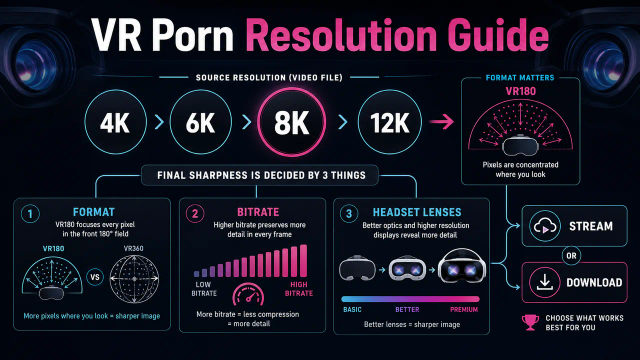
Set your expectations first: casting VR porn never looks as good as wearing the headset. The cast pipeline drops the stereoscopic 180-degree feed into one flat 2D eye view, downscales the resolution to 720p or 1080p, and adds latency between what you see in the headset and what shows on the TV. Casting is for sharing, not for upgrading.
| Aspect | In the Headset | On the Cast |
|---|---|---|
| Stereo depth | Full 180° stereo 3D | One eye, flat 2D |
| Resolution | 6K to 8K stream/download | 720p to 1080p typical |
| Frame rate | Up to 60fps in playback | Limited by cast protocol |
| Color depth | Full headset panel range | Compressed for transport |
| Latency | Real-time | Noticeable lag on wireless cast |
| Field of view | Full headset FOV | Cropped letterbox style |
The single-eye crop matters most. Many VR porn scenes are framed for stereoscopic depth, which means a flat single-eye view loses the foreground intimacy that makes the format work. A scene that feels close in the headset will feel like a regular video on the TV.
Latency adds another wrinkle. Built-in Cast over Wi-Fi has a noticeable delay between headset and TV. That is fine for shared viewing where everyone watches the TV, but it is distracting if the user in the headset reacts before the TV shows what they reacted to.
Resolution cap is the third tradeoff. The Quest 3 is rendering at much higher per-eye resolution than the cast pipeline transmits. The TV image always looks softer than the in-headset image, even on a fast connection.
If the goal is the highest possible TV quality, skip the wireless route entirely. Use a PC with Quest Link, then mirror the SteamVR window on the PC’s HDMI output. Wired throughput beats wireless cast every time.
Method 1: Built-in Cast to a Chromecast or Google TV
Built-in Cast is the simplest path for most users. The Quest 3’s universal menu has a Cast button that lists nearby compatible devices: Chromecast Ultra, Chromecast with Google TV, NVIDIA Shield, the Meta Quest mobile app, and many smart TVs running Google TV or Android TV. No extra apps or sideloading required. See Meta’s official Quest casting documentation for the supported-device matrix and any current platform-side caveats.
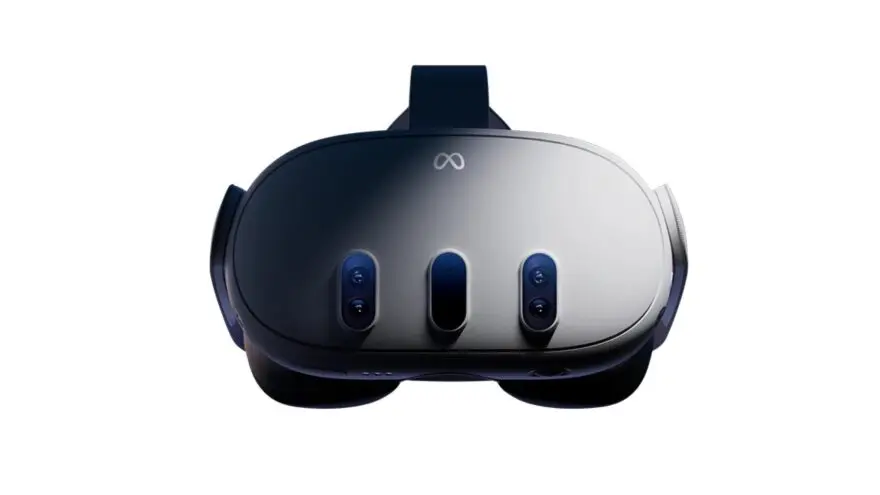
The setup steps are short:
- Power on the Chromecast or compatible TV.
- Make sure the headset and the cast target are on the same Wi-Fi network.
- Open your VR player in the Quest (DeoVR, HereSphere, Skybox, or the headset browser).
- Start playback so the cast has live content.
- Press the Meta button to open the universal menu.
- Select Camera, then Cast.
- Pick the target device from the list.
- Confirm the cast started on the TV.
Compatibility is broad but not universal. If your TV supports Google Cast or Chromecast built-in, it will usually appear in the list. Some Samsung, LG, and Sony smart TVs need a separate Chromecast dongle because their casting protocols differ.
The cast survives most app switches inside the headset, but switching headset apps mid-cast can briefly drop the TV signal. If the cast fails silently, restart the cast from the universal menu. The Meta Quest mobile app also displays the headset view as a fallback target if a TV is not available.
Method 2: Cast Directly to a Smart TV
Many recent smart TVs can receive a cast from the Quest 3 without a separate Chromecast device. Google TV models, Android TV models, and TVs that ship with built-in Chromecast generally work. Apple TVs do not show up because they use AirPlay, which Quest does not support natively. Google’s Chromecast support hub lists current compatible devices and network requirements if your TV is not appearing.

The TV-side checklist:
- The TV is on and awake (not in standby).
- The TV is connected to the same Wi-Fi network as the Quest.
- Casting is enabled in the TV’s settings (some models hide it under Network or Inputs).
- The TV’s Chromecast firmware is current.
- The TV is not in a Google Home group with other rooms unless that is intended.
If the TV does not show up in the Quest’s cast list, the most common cause is a network issue. Mesh routers and isolated guest networks block the discovery handshake casting needs. Move both devices onto the main Wi-Fi network and try again.
A direct-to-smart-TV cast usually delivers slightly better latency than a Chromecast-attached TV because there is one fewer device in the chain. Quality stays the same: a flat 2D, 720p or 1080p stream regardless of how good the TV panel is.
Method 3: Quest Link or Air Link to PC, Then HDMI
The PC mirror route suits users who want the cleanest possible TV image. Quest Link (wired USB-C) and Air Link (wireless over Wi-Fi 6E) connect the headset to a PC. SteamVR or the Meta Quest Link desktop app then renders the headset view in a desktop window on the PC. From there, any HDMI output from the PC drives the TV directly. The Meta Quest Link desktop app download page covers current PC requirements and Air Link bandwidth notes before you commit to the wired path.

The setup overview:
- Install the Meta Quest Link desktop app on the PC.
- Connect Quest 3 over USB-C (Link) or Wi-Fi 6E (Air Link).
- Launch SteamVR or the Quest Link environment.
- Open your preferred VR player on the PC (DeoVR, HereSphere, or Skybox).
- Use the SteamVR mirror window or the player’s desktop view.
- Drag that window onto the TV’s HDMI output (extended display).
- Maximise the window so it fills the TV.
This path beats wireless casting on every quality axis: higher resolution, lower latency, fewer dropped frames, and no compression artifacts. The tradeoff is setup friction. Quest Link cable, Wi-Fi 6E router for Air Link, SteamVR drivers, and an HDMI run from the PC to the TV all need to work together.
For users with an existing PC VR setup, this is the obvious answer. For standalone-only Quest users, the built-in Cast methods are easier even with their compromises.
BadoinkVR's premium 8K scenes hold up better than most under cast compression because the source bitrate is higher.
Casting from Inside DeoVR, HereSphere, and the Browser
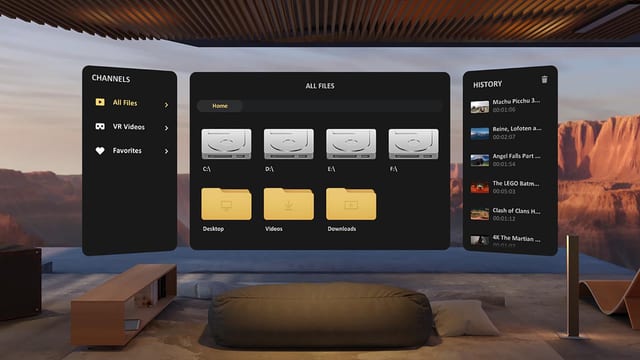
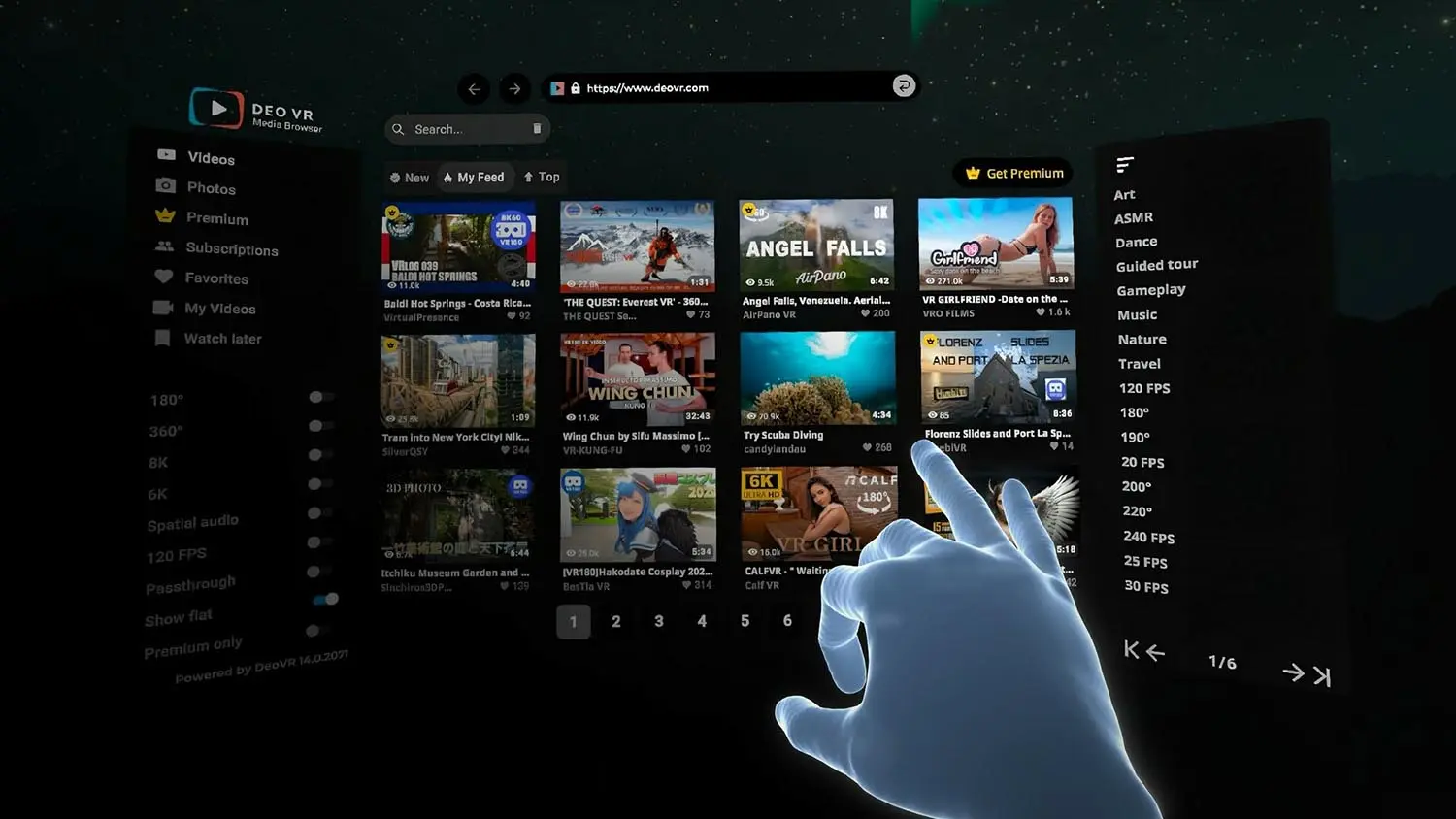
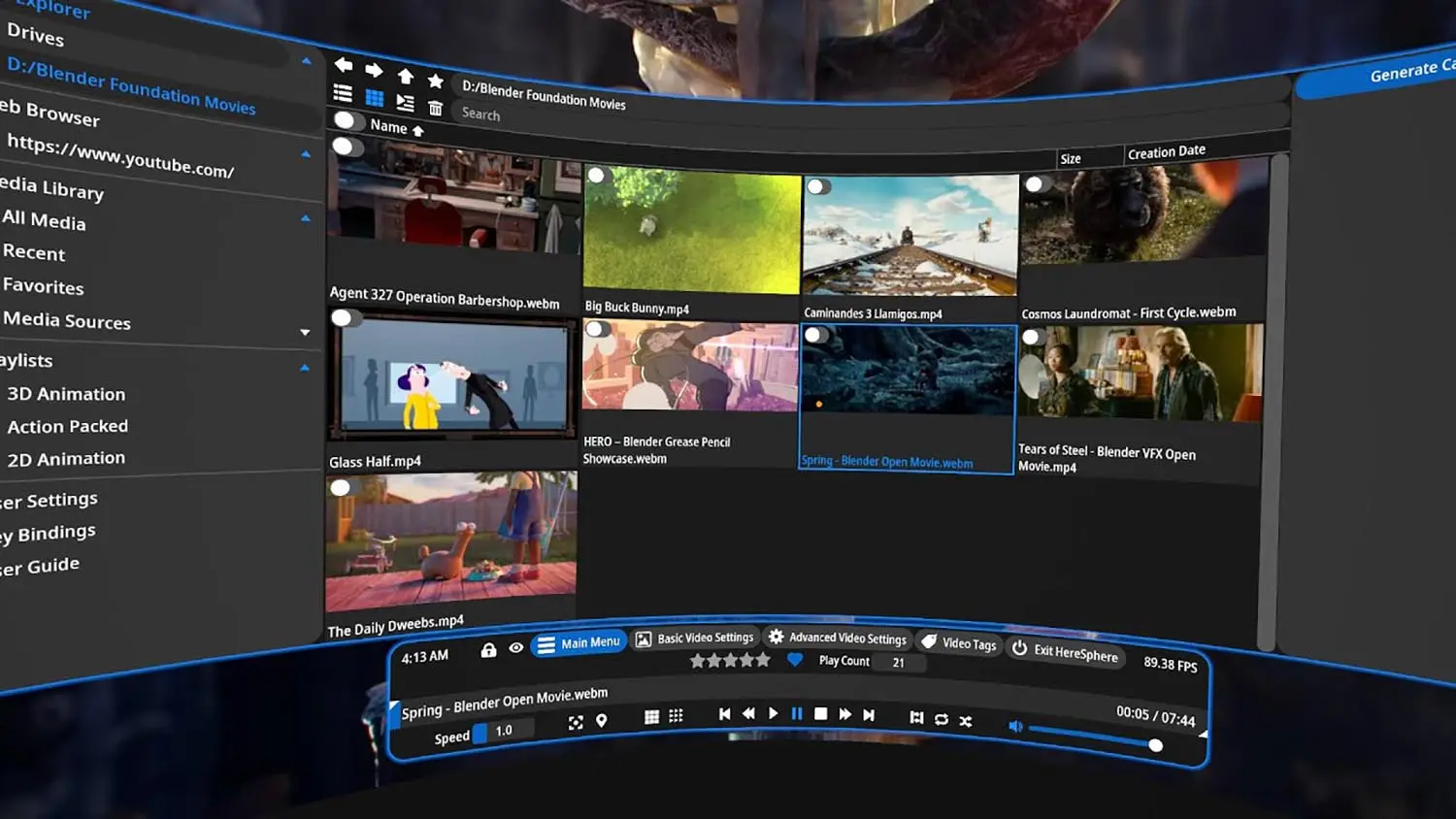
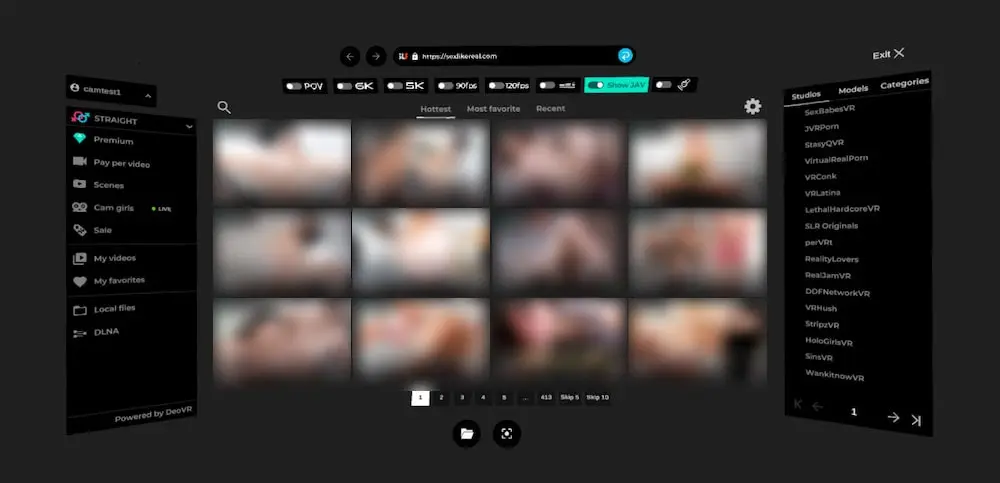
The major VR video apps all play nicely with the Quest’s built-in Cast. DeoVR, HereSphere, Skybox, and the Meta browser each forward their active output to the cast pipeline. The trick is starting the player first so the cast has real content to mirror, not the Quest home environment.
| App | Casting Behavior | Notes |
|---|---|---|
| DeoVR | Cast mirrors active player view | Cleanest single-eye output |
| HereSphere | Cast mirrors active player view | Color and projection settings carry through |
| Skybox | Cast mirrors local file playback | File browser also visible to TV |
| Meta browser | Cast mirrors browser tab | Site UI is visible alongside the video |
DeoVR is the recommended starting point because its single-eye output is the cleanest of the major players. HereSphere matches it for output quality but exposes more controls that are visible to the TV viewer during the cast. Skybox is fine for local files but its file browser is also part of the cast, which is a privacy concern for shared viewing.
The Meta browser is the easiest path for sites that stream VR porn directly without a dedicated app. The cast shows the entire browser tab including the address bar, so use the browser’s hide-controls mode where possible to keep the TV view clean. Some browsers can full-screen video, which is the right move for a tidy cast.
Privacy Steps That Actually Matter
Lock down a few specific privacy patterns before any first cast. Adult content casts are easy to surface accidentally because Quest remembers paired devices, casting can auto-resume, and Chromecast groups can broadcast to multiple rooms. The risk is not the technology; it is the defaults.
The eight habits to set before the first cast:
- Disable Chromecast auto-pairing in Google Home.
- Confirm cast target by name, not by position in the list.
- Remove old Chromecast devices that are no longer in use.
- Pull casting devices out of multi-room groups before adult casts.
- Use a private Wi-Fi network rather than guest networks for cast discovery.
- Lock the Quest with a PIN so other users cannot resume an active cast.
- Watch for the Quest’s casting indicator and stop cleanly when done.
- Test the cast with a non-explicit video first to confirm the right target.
The biggest single risk is auto-resume. The Quest sometimes resumes a previous cast target when the headset comes out of standby. If a previous session went to a living-room TV and someone is in the living room, the next cast can land on that TV before you notice. Stop casts cleanly from the universal menu rather than just removing the headset.
The second biggest risk is Chromecast groups. If your Chromecast is part of a Google Home whole-home audio or video group, casting can broadcast to every room in the group. Pull the cast device out of the group during adult viewing, then add it back after.
The third risk is the cast indicator on the TV. Many TVs show a brief “cast received from Meta Quest” notification when a cast lands. That is visible to anyone in the room. The headset’s universal menu also shows a casting indicator, but that is only visible to the headset wearer.
If discretion matters more than a TV-side viewer, a smartphone cast through the Meta Quest app is a quieter fallback. The phone shows the headset view privately, no TV involved.
Common Issues and Fixes
Troubleshoot casting in this order: confirm the device is on the right network, restart the cast from the universal menu, switch to a wired path if Wi-Fi is unstable, then reset the Chromecast or smart TV’s casting state. Most failures come from network drops, group routing, or compatibility quirks rather than the headset itself.

| Problem | Likely cause | Fix |
|---|---|---|
| TV not in cast list | Different Wi-Fi network | Move both to the same network |
| Cast starts but TV is black | Player not running | Open the VR player first |
| Cast shows home screen, not video | Cast started before playback | Restart cast after playback begins |
| Cast looks low resolution | Built-in Cast cap | Use PC mirror over HDMI for sharper image |
| Cast is laggy | Wi-Fi congestion | Switch to 5GHz or wired PC mirror |
| Audio not on TV | Audio target mismatch | Set TV as default audio output |
| Cast cuts out mid-playback | Quest standby or app crash | Disable standby for cast sessions |
| Wrong TV gets the cast | Chromecast group active | Remove from group before casting |
If casting fails repeatedly on built-in Cast, the next step is the PC mirror path. Quest Link plus an HDMI cable removes the wireless variables. Most network-related cast failures disappear on a wired chain.
If the PC mirror also fails, the issue is upstream of the cast: SteamVR drivers, HDMI cable, or the TV input itself. Test the PC’s HDMI output with a non-VR application to isolate the problem before retrying the headset path.
For older Chromecast models (first-gen, Chromecast Audio), VR cast support is unreliable. Upgrade to Chromecast with Google TV or use a smart TV with built-in Chromecast for the most predictable behavior.
FAQ
Here are answers to the most common casting questions. The short version: yes, you can cast Quest 3 VR porn to a TV, but you lose the stereo depth and the resolution drops to 720p or 1080p. Built-in Cast is easiest, PC mirror is best quality, and privacy needs setup before the first session.
Can you cast VR porn from a Quest 3 to a TV?
Yes. Use the Quest’s built-in Cast to a Chromecast, a supported smart TV, the Meta Quest mobile app, or a PC over Quest Link. The cast shows one eye in 2D, not the full stereo 3D view.
Does VR porn look 3D when you cast it to a TV?
No. Casting flattens the stereoscopic feed into a single-eye 2D image. Most TVs cannot display stereo VR signals, and the casting pipeline does not transmit stereo data. The TV image looks like a regular flat video.
What is the best way to cast VR porn from Quest 3?
Built-in Cast to a Chromecast is the simplest. PC mirror over Quest Link is the highest quality. Pick the simple path for casual shared viewing and the PC path for cleanest image.
Why is the cast so blurry compared to the headset image?
The Quest 3 renders at much higher per-eye resolution than the cast can transmit. Casting downscales to 720p or 1080p for compatibility. A wired PC mirror preserves more detail than wireless casting.
Is casting VR porn from Quest 3 private?
Not by default. Quest remembers cast targets and can auto-resume to previously paired devices. Always confirm the target by name, lock the Quest with a PIN, and pull the Chromecast out of any Google Home groups before adult casts.
Can I cast DeoVR or HereSphere from Quest 3?
Yes. Both apps cast through the Quest’s built-in Cast feature. Open the player and start playback first, then start the cast from the universal menu.
Does Apple TV support Quest 3 casting?
No. Apple TV uses AirPlay, which Quest does not support natively. Use a Chromecast device or compatible smart TV instead.
If casting quality matters more than catalog breadth, VR Bangers ships the highest-bitrate 8K source files of any premium VR studio, which is exactly what survives the cast pipeline best.
Bottom Line
VR Porn Dog recommends Quest 3 casting only when shared viewing is the actual goal. Casting flattens the stereo image, drops the resolution, and adds latency, so it never matches the in-headset experience. For solo personal playback, keep watching in the headset. For a partner or shared session, casting is the path that makes that possible.
For most users, built-in Cast to a Chromecast or compatible smart TV is the easiest method and good enough for casual shared viewing. PC VR users should use Quest Link plus an HDMI mirror for the best image. Either way, set the privacy habits first: confirm the target, pull devices out of multi-room groups, and stop the cast cleanly when the session ends.
The rule is simple: cast for sharing, not for quality, and confirm the target before you press play.